How to Resize a Photo Without It Looking Stretched
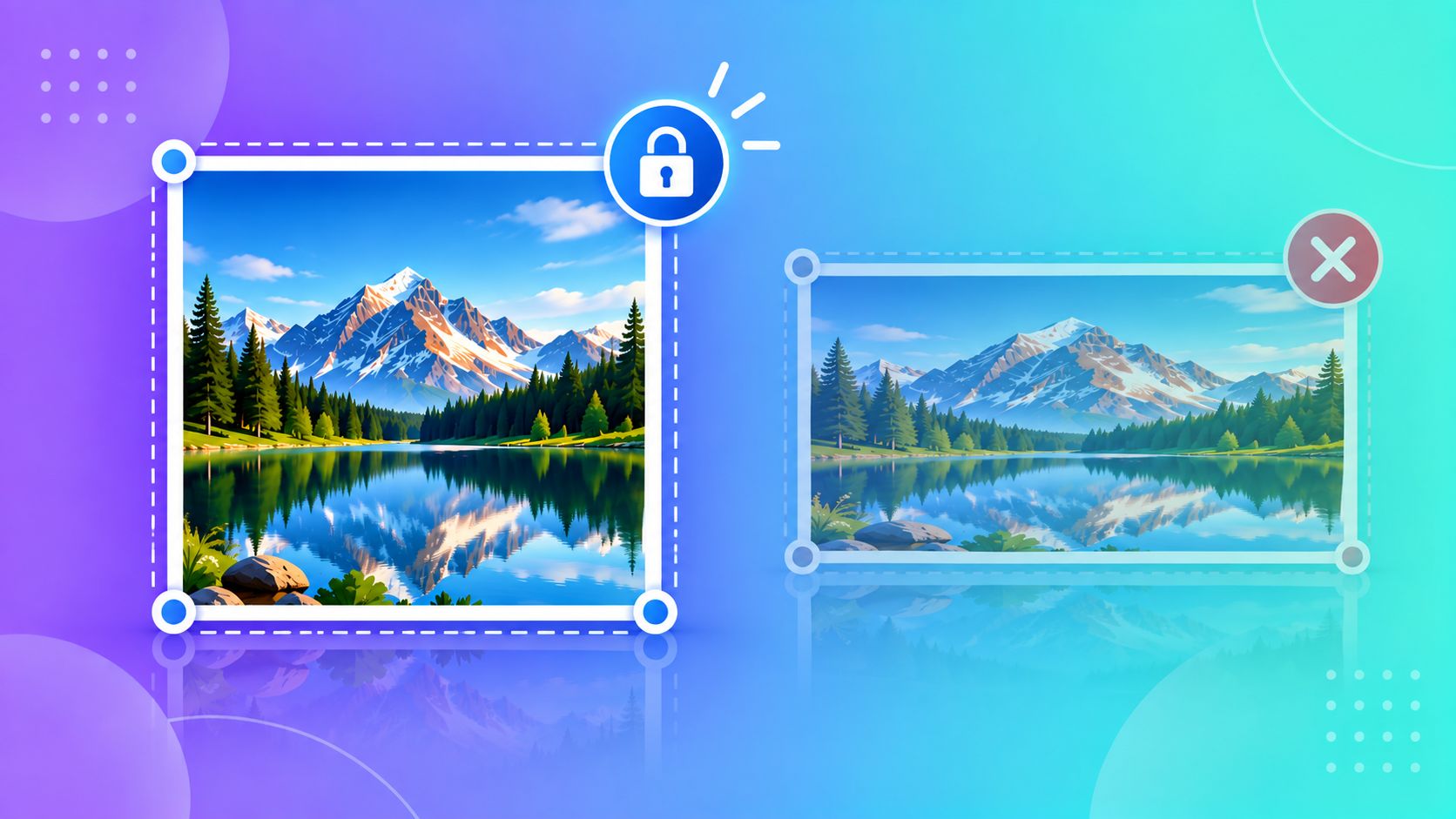
You've probably seen it happen — someone resizes a photo and it comes out looking squashed, stretched, or oddly cropped. This almost always comes down to one thing: ignoring the image's aspect ratio. Here's how to avoid it.
What Is Aspect Ratio, and Why It Matters
Aspect ratio is just the relationship between an image's width and height — for example, 4:3 or 1:1 (square). If you resize an image by typing in a new width and height that don't match the original ratio, the image gets stretched or squeezed to fit, distorting faces and straight lines in the process.
A good resize tool locks the aspect ratio by default, so when you change the width, the height adjusts automatically to match — and nothing looks warped.
What Size Should You Actually Use?
Different platforms expect different shapes:
- Instagram square post: 1080×1080 pixels (1:1)
- Instagram/Facebook story: 1080×1920 pixels (9:16)
- WhatsApp profile photo: roughly 500×500 pixels works well, though WhatsApp compresses it further on its own
- Email attachment: there's no fixed size, but keeping the longer side under 1500-2000 pixels avoids unnecessarily huge attachments
- Passport, exam, or ID photo: follow the exact pixel dimensions stated by that specific form — these are usually strict and non-square (e.g. 200×230 px for many Indian exam portals)
Cropping vs. Resizing — They're Different Things
Resizing changes the overall size of the whole image while keeping everything in frame. Cropping removes parts of the image to change its shape — for example, cutting a wide landscape photo down to a square. If your photo's natural shape doesn't match what a platform wants, you'll usually need to crop first, then resize.
A Simple Workflow That Avoids Distortion
- Decide the shape you need (square, portrait, the exact pixel size a form requires)
- If the current photo's shape doesn't match, crop it to that shape first
- Then resize to the exact final pixel dimensions, with aspect ratio locked
Doing it in this order — crop first, resize second — is what keeps faces and proportions looking natural instead of squashed.
Try It Instantly
ToolMyPic's Crop tool and Resize tool work together right in your browser, with aspect ratio locking built in, so you don't have to do any manual math.