The Right Way to Crop a Photo for a Passport, ID, or Resume
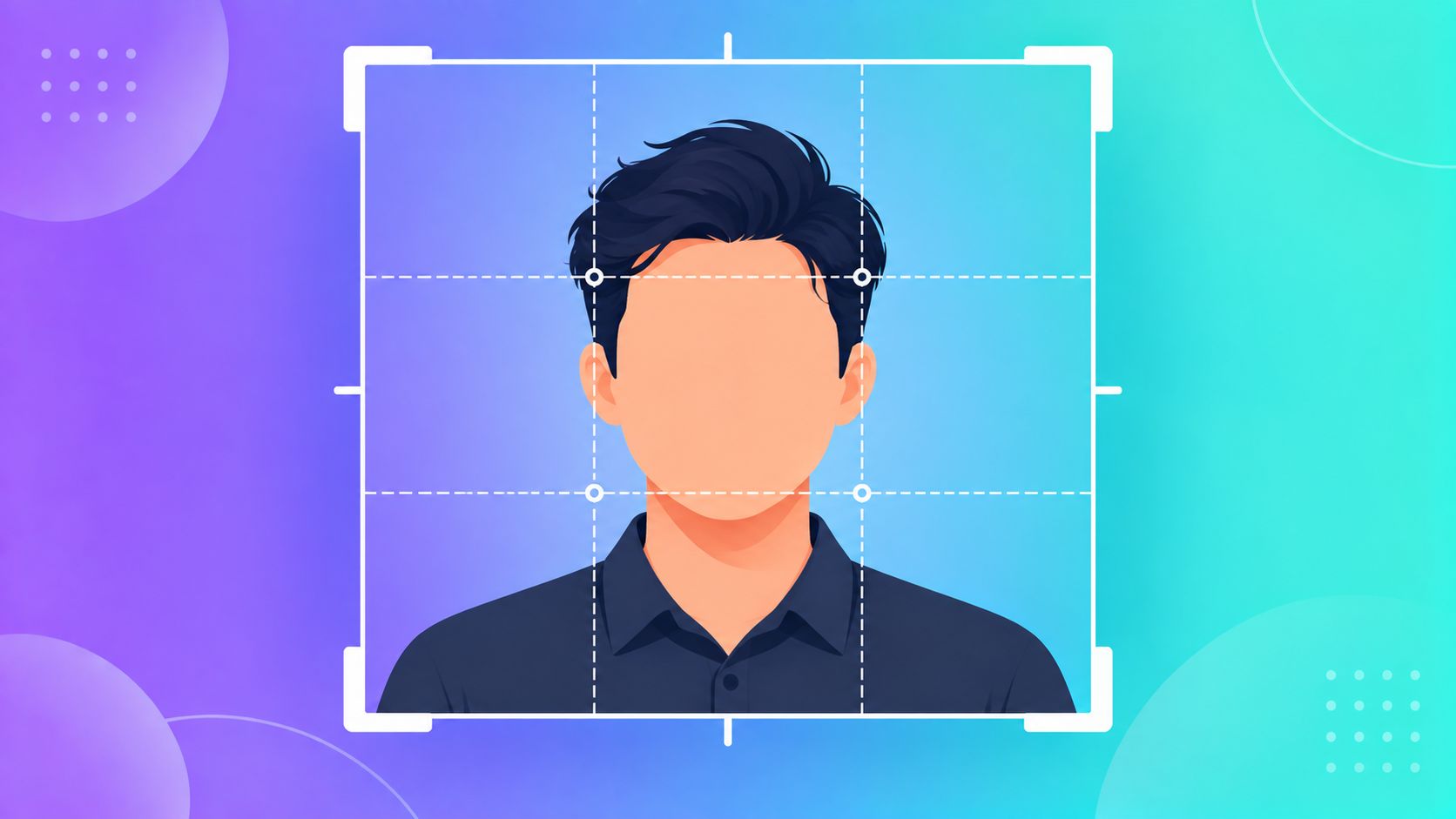
A surprising number of ID and exam form photos get rejected for one simple reason: bad cropping. Too much background, the face too small or too close to the edge, an off-center crop. Here's how to get it right the first time.
Why Cropping Matters More Than People Think
Most ID photo requirements aren't just about file size or format — they specify exactly how much of the frame your face and shoulders should occupy, and where your eyes should sit vertically in the photo. A photo that's technically the right pixel dimensions but badly framed will still get rejected by an automated checker or a human reviewer.
What Most ID Photo Requirements Actually Ask For
While exact numbers vary by country and form, the general pattern looks like this:
- Head height: usually 50-70% of the total photo height, measured from chin to top of head
- Eye position: typically somewhere in the upper-middle portion of the frame, not dead center and not too close to the top
- Centered horizontally: your face should sit in the middle of the frame, not off to one side
- Plain background: usually white or light-colored, with nothing else visible in frame
Always check the specific requirement for the exact form you're applying to — government exam portals, passport offices, and visa applications each tend to have their own precise specifications.
Common Mistakes
- Cropping too wide — leaving too much background makes the face look too small in the frame
- Cropping too tight — cutting off part of the head or chin
- Off-center framing — easy to do when cropping by eye instead of using guide lines
- Wrong aspect ratio — many forms want a very specific ratio (like 2:2.3 or similar), not just "any square or rectangle"
A Simple Approach That Works
- Start with a photo taken straight-on, good lighting, plain background, looking directly at the camera
- Use a crop tool with guide lines (rule-of-thirds or a face-centering guide) rather than cropping freehand
- Leave a small, even margin of background on all sides — not tight against the edges of your face
- Resize to the exact pixel dimensions the form specifies as the final step, after cropping
For Resumes, the Rules Are Looser — But Still Matter
If you're cropping a photo for a resume or LinkedIn profile rather than an official document, there's more flexibility — but the same basic principles apply: centered face, simple background, and leaving a bit of breathing room rather than a tight, awkward crop right up against your face.
Try It Instantly
ToolMyPic's Crop tool includes drag-to-position and guide overlays, so you can frame your photo accurately before resizing it to the exact dimensions you need — right in your browser, nothing uploaded anywhere.